Get reminders from a date field
Updated:
On this page
Set a reminder on a date field to receive a notification at its start or end date and time. Set up reminders separately on each iPhone or iPad where you want to receive them.
Set a reminder
Enter a date in the record first. To specify a time, turn on Include Time in the date field settings. To get an end reminder too, turn on End Date in the date field settings and enter an end date in the record.
- Open the record’s details.
- Tap Reminder for the field containing the date.
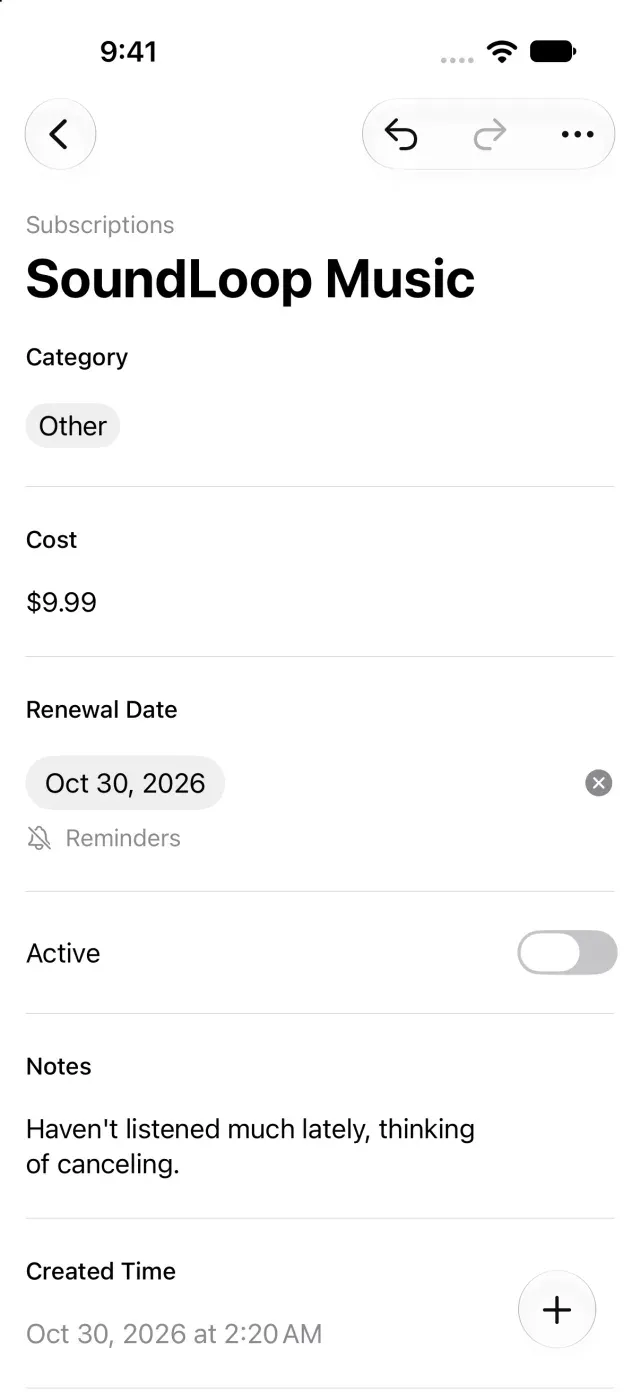
- Review Notify at and choose Normal under Reminder.
- If a permission request appears, allow notifications.
- If there is an end date, set Start and End reminders separately.
Reminders arrive at the date and time entered in the date field. Dates without a time use 9:00 AM on that day. To receive reminders on another iPhone or iPad, set them up on that device too.
If reminders don’t arrive, see Date field reminders don’t arrive.
Sound an alarm instead of a notification
Choose Urgent under Reminder to sound an alarm at the specified time instead of a notification. Tap Stop to stop the alarm.
- Tap the date field’s Reminder button.
- Choose Urgent under Reminder.
- If a permission request appears, allow alarms.
Urgent reminders are available on iOS 26 or later and iPadOS 26 or later.
Turn off a reminder
Tap the date field’s Reminder button and choose None under Reminder.
Stay within the reminder limit
You can set up to 64 normal reminders per device. If you reach the limit, turn off reminders you no longer need.
Was this article helpful?
Choose a reason
Thank you for your feedback.
If you still need help, use the contact form.