Clastly Pro
Link records with a relation
Updated:
Use a relation to link records in the same collection or another collection.
Add a relation field
Create the records you want to link and their collections first. You can’t change the target collection after creating a relation.
- Touch and hold the source collection in the collection list and open Edit Collection.
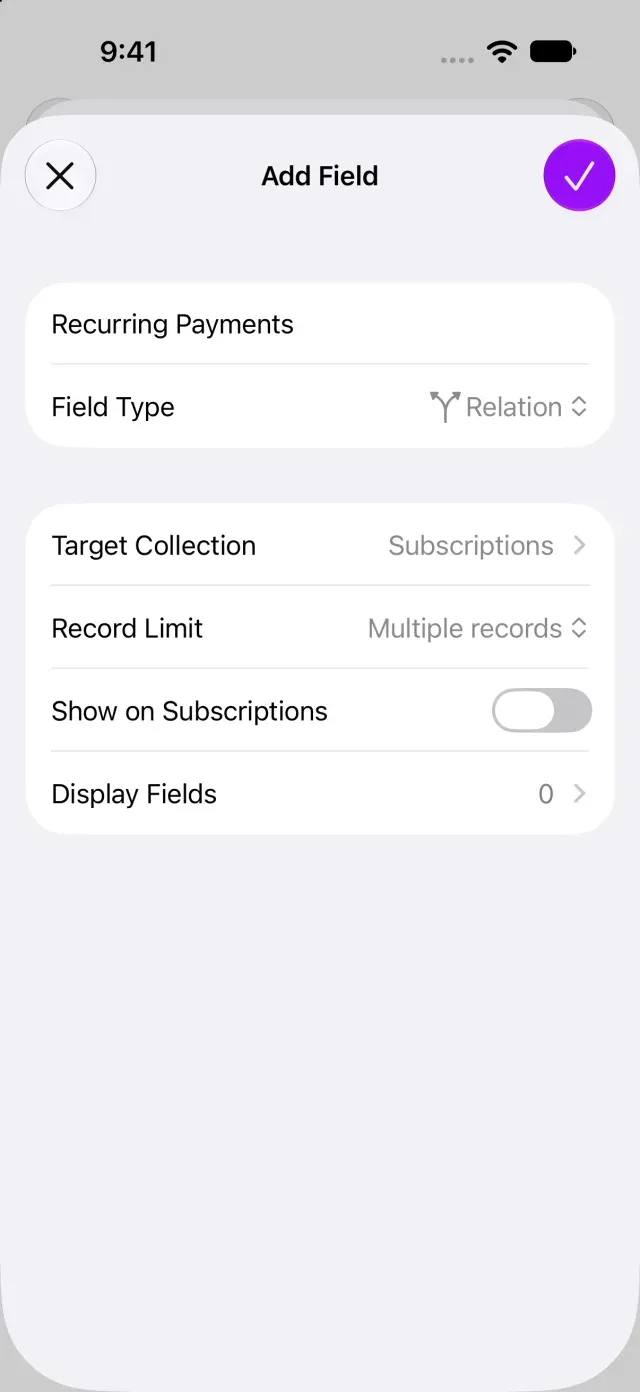
- Tap Add Field and choose Relation under Field Type.
- Enter a Field Name and choose the Target Collection.
- Under Record Limit, choose Multiple records or One record.
- To show the relation on the linked records too, turn on Show on (target collection name) and set Other Field Name and Other Record Limit.
- Tap Done.
Link records
- Open the source record.
- Tap Add in the relation field.
- Tap the records you want to link. Each selection is saved as you make it.
- Tap Close. Linked records appear in the source record’s details. If you enabled the reverse relation, it also appears on the linked records.
If the one-record limit requires removing an existing link, read the confirmation and choose Change Link.
Find missing records or resolve setup problems
If no matching records appear, make sure the target collection contains records and that they aren’t archived. If you purchased Clastly Pro but can’t set up the relation, see Clastly Pro features aren’t available after purchase.
Was this article helpful?
Choose a reason
Thank you for your feedback.
If you still need help, use the contact form.