Calculate values with a formula field
Updated:
Add a formula field to display a result calculated from other field values.
Add a formula field
Add the fields used in the formula to the same collection first. For example, to multiply quantity by unit price, add number fields named Quantity and Unit Price and enter numbers in a record.
- Touch and hold the collection in the collection list and open Edit Collection.
- Tap Add Field.
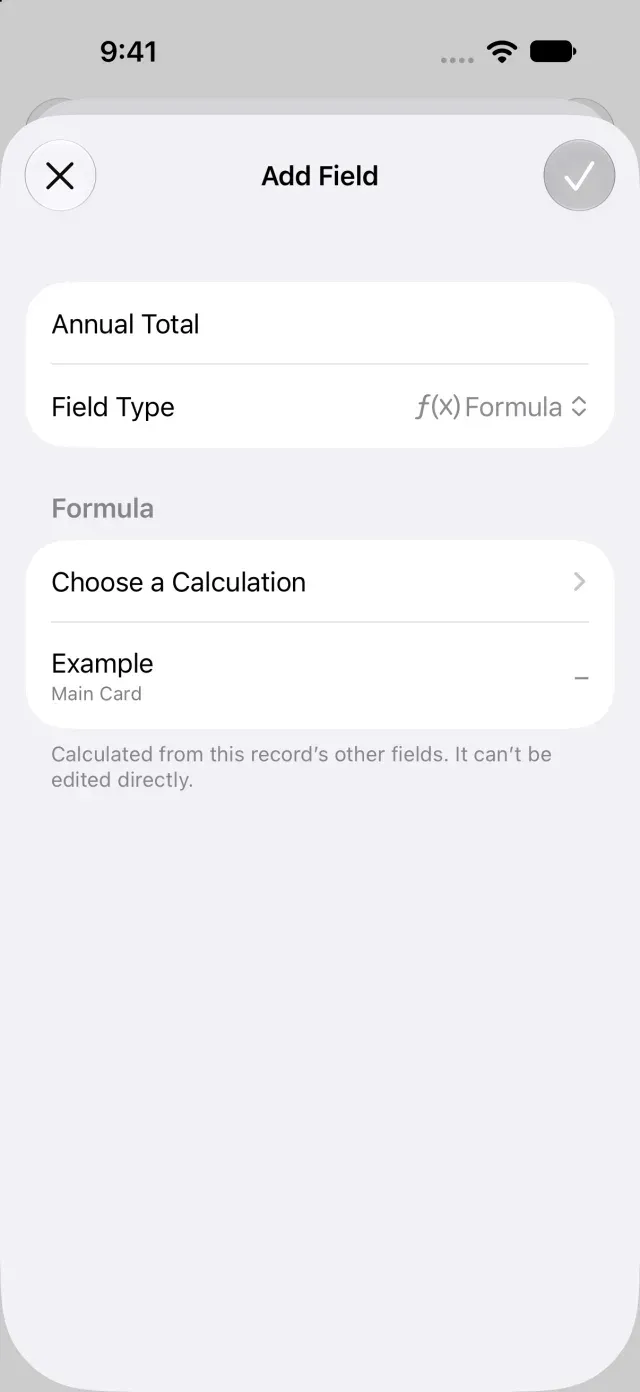
- Choose Formula under Field Type and enter a Field Name.
- Tap Choose a Calculation. The formula editor opens.
Enter a formula
- Open Fields and insert the fields you want to use.
- Open Functions to read a function’s description and syntax.
- Enter the formula and review the examples, result, and validation errors.
- Return to the field editor and tap Save. The formula field’s result appears in the record’s details.
Use this formula to multiply Quantity by Unit Price:
multiply({Quantity}, {Unit Price})For the available functions, see Functions you can use in formulas.
Enclose field names in braces. If multiple fields have the same name, you can choose the field to reference when inserting it.
The result recalculates when a source value changes. You can’t enter the result directly.
Resolve formula errors or saving problems
If an error appears, check for deleted field references, division by zero, or circular references. If you can’t save, review the validation errors in the formula editor. If you purchased Clastly Pro but can’t edit the field, see Clastly Pro features aren’t available after purchase.
Was this article helpful?
Choose a reason
Thank you for your feedback.
If you still need help, use the contact form.