Add a field
Updated:
Add a field to give records in a collection another value to hold.
Choose a field type that matches the value you want to enter. The type determines which values you can enter and how they appear. Use Text for text, Number for amounts or quantities, and Date for dates.
- Touch and hold the collection in the collection list.
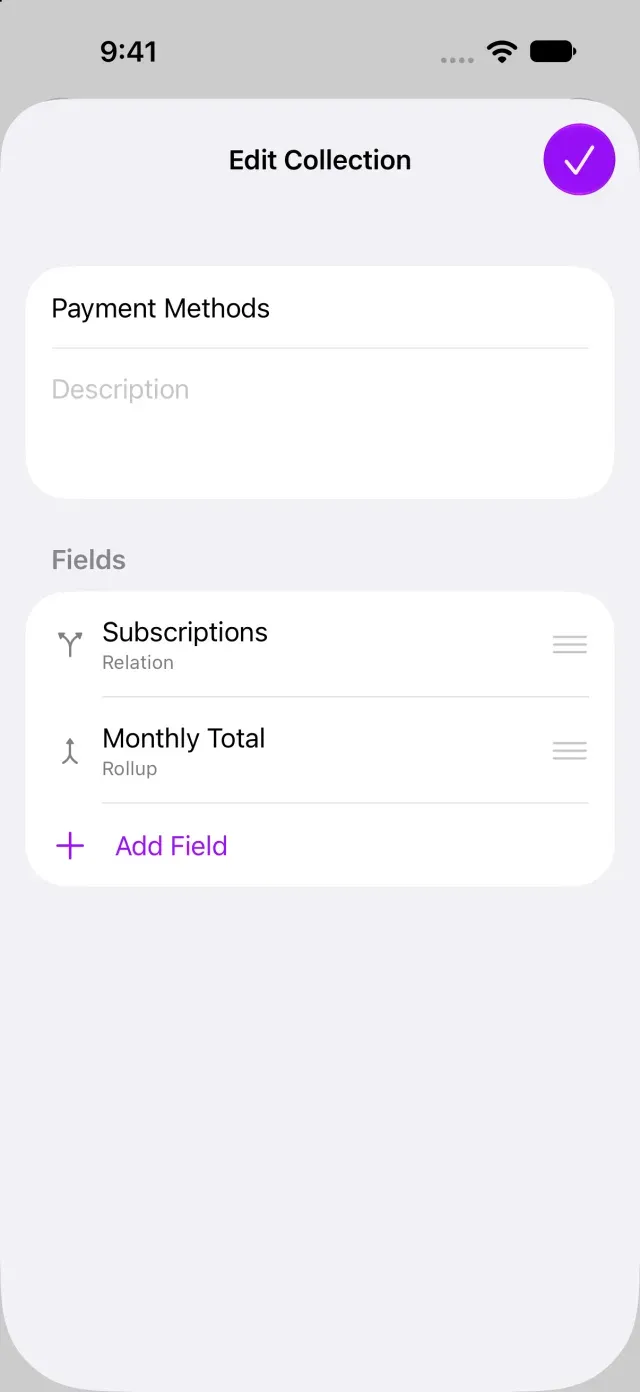
- Tap Edit Collection. If there are no active fields, choose a template to open the editor.
- Tap Add Field under Fields. The field editor appears.
- Choose a Field Type and enter a Field Name.
- For a single-select or multi-select field, use Add Option to set up the options.
- Tap Done. The field is added to the collection’s field list with the name and type you chose.
Open a record to enter a value in the new field. Some field types, such as created time and calculated results, don’t take direct input. To cancel adding a field, tap Cancel in the field editor.
Creating Formula, Relation, and Rollup fields requires Clastly Pro. For a formula, the button to confirm edits is Save. If you purchased Clastly Pro but can’t create these fields, see Clastly Pro features aren’t available after purchase.
Was this article helpful?
Choose a reason
Thank you for your feedback.
If you still need help, use the contact form.