Change a view layout
Updated:
Change a view’s layout to display the same records as a list, table, or another format.
Choose a layout
A view holds settings for how records appear and which records to show. Its layout is the format used to arrange records.
- Open a collection.
- Tap the currently selected view’s name at the top of the collection. The view settings menu appears.
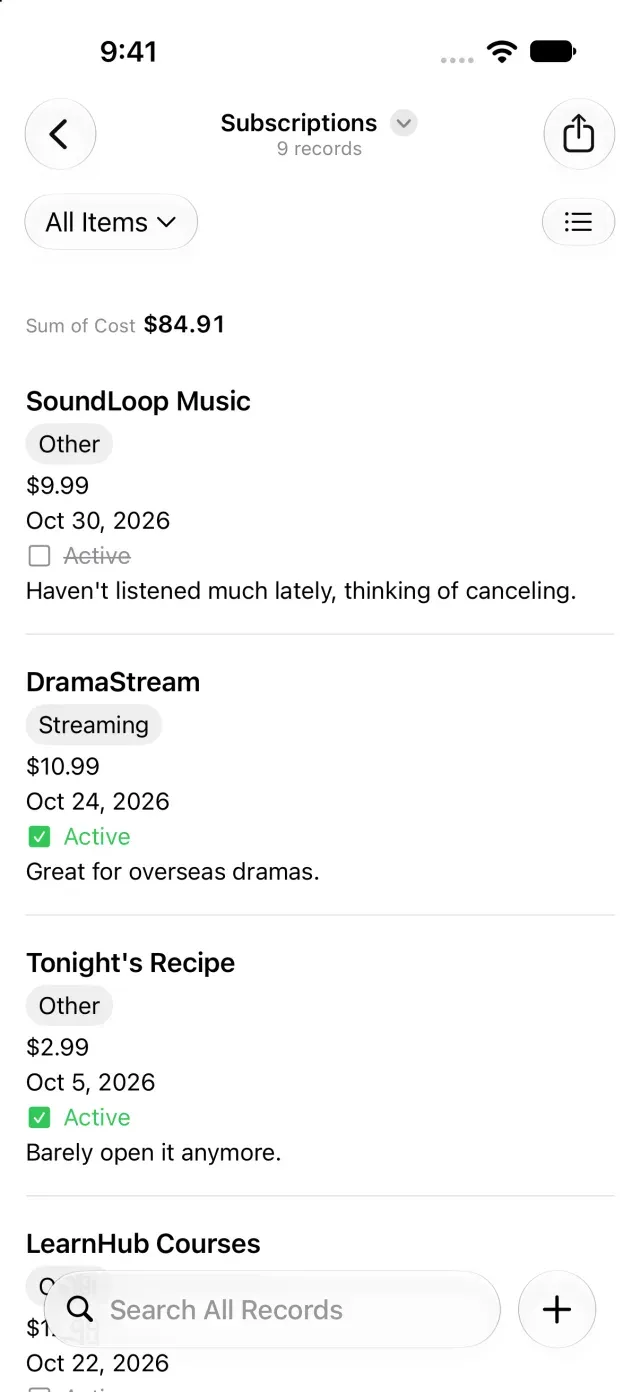
- Choose a format under Layout. The record list switches to that format.
Available layouts are List, Table, Gallery, Masonry, Board, Calendar, and Map. Changing layouts doesn’t require Clastly Pro.
Board requires a field that supports grouping. Calendar requires an available date source, and Map requires a location field or a location attached to a note. A layout is unavailable if it has no suitable source. If you can’t choose Calendar, see Show records with dates on a calendar. If you can’t choose Board, see Group records.
If you change a saved view in Clastly Pro, tap Save Changes in the view menu.
Change which fields appear in the list
- Tap Row Contents… in the current view’s settings menu.
- Show or hide fields and rearrange their display order. The title always appears.
Row Contents controls which information appears in the record list. Hiding a field doesn’t delete its values.
Was this article helpful?
Choose a reason
Thank you for your feedback.
If you still need help, use the contact form.