Group records
Updated:
Set up grouping to display records together based on field values.
Choose what to group by
- Open a collection and tap the selected view’s name at the top.
- Tap Grouping…. The grouping settings appear.
- Choose the title or a field to group by.
- Choose a grouping method available for that field. Records in the same group appear together in the list.
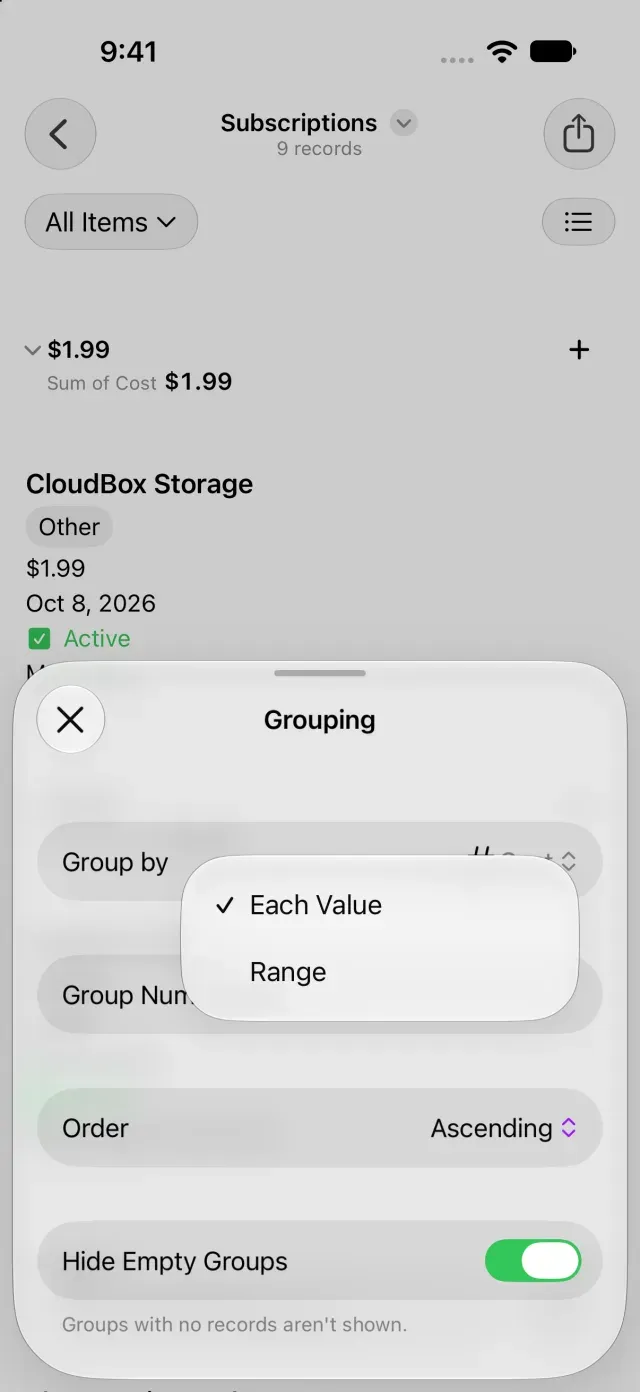
Text and URLs can be grouped by matching values or initial characters, numbers by value or range, and dates by day, week, month, year, and other periods. Location and file fields aren’t available for grouping. If a field is missing, check whether its type is excluded from grouping, such as Location or File.
Adjust how groups appear
- Choose the group order in grouping settings.
- To hide groups with no records, turn on Hide Empty Groups.
- Tap Close when you finish.
In the Board layout, each group becomes a column. Board requires a field that supports grouping.
If you change a saved view in Clastly Pro, choose Save Changes in the view menu.
Turn off grouping
- Open Grouping… from the current view’s menu.
- Change the grouping field to None.
If records aren’t visible, review search terms and filters. For filters, see Filter and sort records.
Was this article helpful?
Choose a reason
Thank you for your feedback.
If you still need help, use the contact form.