Show record counts and totals in a view
Updated:
Views show record counts, and you can add summaries to display sums and averages. Adding or editing summaries such as sums and averages requires Clastly Pro.
See record counts
Record counts and counts per group are free.
- Open a collection. The number of visible records appears below its name.
- To see counts per group, set up grouping using Group records.
Add a sum or average
- Tap the selected view’s name at the top of the collection.
- Tap Summaries…. Summary settings appear.
- Tap Add Summary.
- Choose a field and calculation. To total amounts, choose Sum for a number field.
- Tap Close when you finish. The summary appears in the collection’s view.
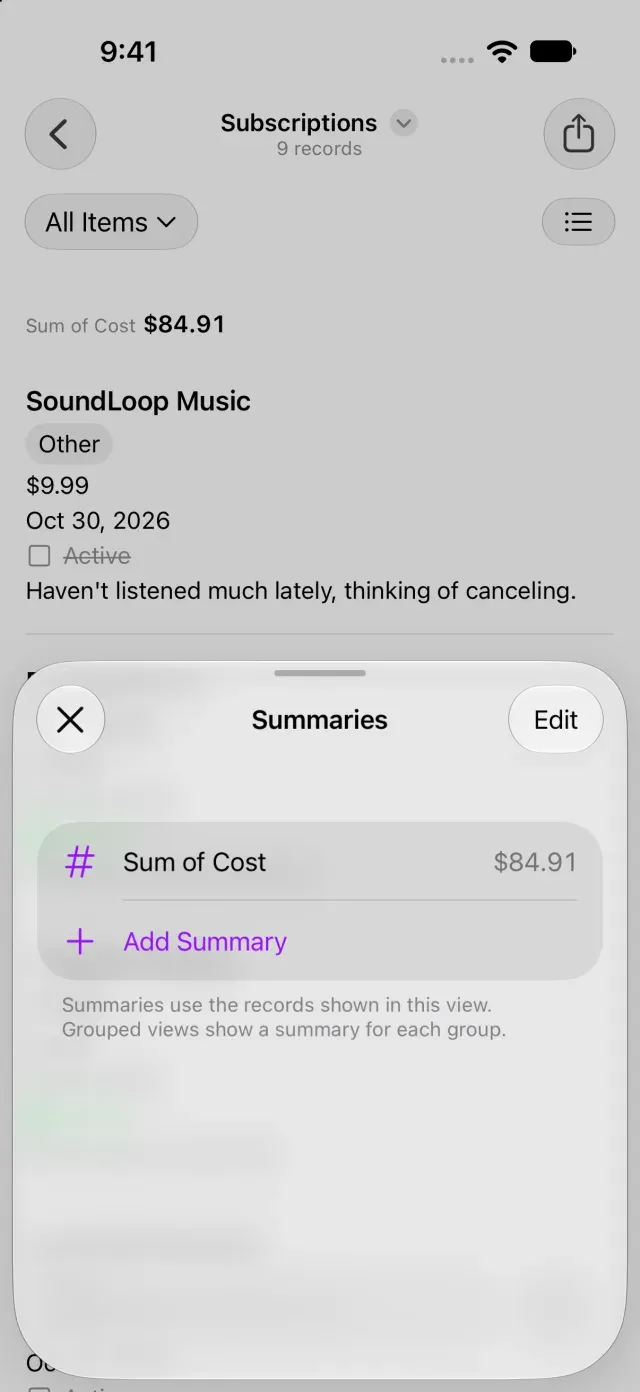
If a filter is active, calculations use the records included in the view. If you change a saved view in Clastly Pro, tap Save Changes in the view menu.
Choose summaries within the limit
Each view supports up to four summaries. Available choices depend on the field’s type, such as sums and averages for numbers, date spans for dates, and the percentage of checked values for checkboxes.
If you can’t add a summary, check whether you’ve reached the limit of four. If Sum isn’t available, make sure you selected a number field. If you purchased Clastly Pro but can’t add a summary, see Clastly Pro features aren’t available after purchase.
Was this article helpful?
Choose a reason
Thank you for your feedback.
If you still need help, use the contact form.