Filter and sort records
Updated:
On this page
Use filters to show only records that match your conditions, and sorting to change their order.
Add filter conditions
- Open a collection and tap the selected view’s name at the top.
- Tap Filter…. The filter editor appears.
- Use Add Condition to choose the title or a field.
- Choose a condition type and enter a comparison value.
- To add more conditions, choose Add Condition again.
- Tap Close. Conditions take effect automatically as you change them.
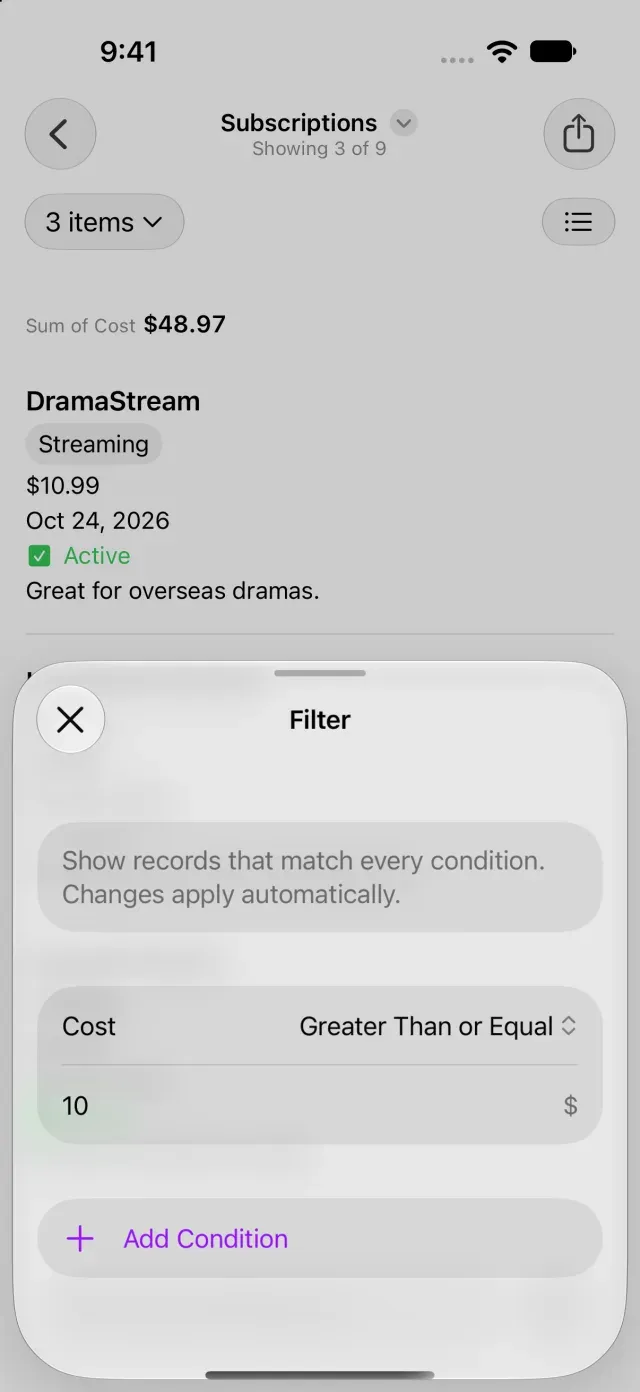
For numbers, you can choose Greater Than or Equal; for dates, On or Before or In Range; and for checkboxes, Checked or Not Checked. When you add multiple conditions, only records that match all of them appear.
If a condition isn’t applied, check for missing comparison text or options. If no records appear, check whether any records match every condition you added. If records are missing only on another device, see Records don’t appear on another device.
Sort records
- Open Sort in the current view’s menu.
- Under Sort By, choose Title or a field that supports sorting.
- Under Order, choose Ascending or Descending.
Sorting uses one criterion. To sort by creation time, choose Default (Created Time).
Clear filters
- Open the current view’s menu.
- Tap Clear Filter.
If you change a saved view in Clastly Pro, tap Save Changes in the view menu.
Was this article helpful?
Choose a reason
Thank you for your feedback.
If you still need help, use the contact form.