Clastly Pro
Save and switch between views
Updated:
Save a view to name a set of display settings and filter conditions and switch between them.
Create a view
A view can hold a layout, filters, sorting, grouping, and row contents together.
- Tap All Views at the top of the collection. View management opens.
- Tap New View.
- Enter a Name and tap Save.
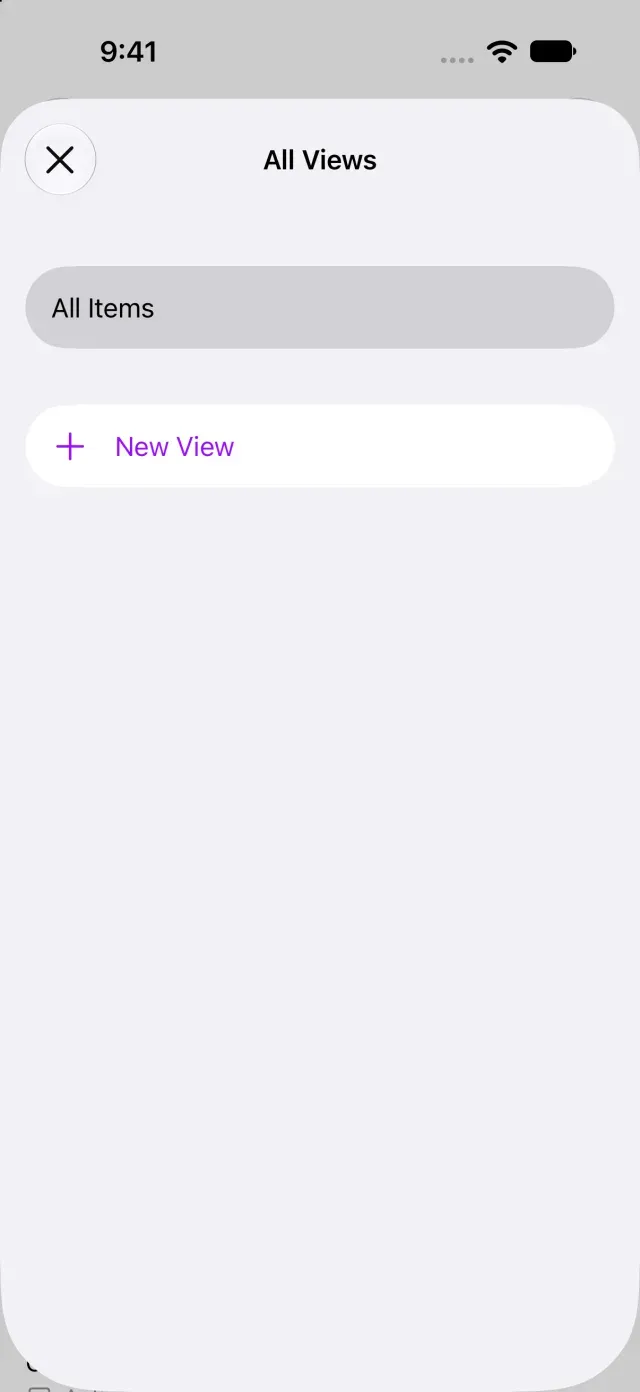
To start with the current display settings, use Duplicate View in the selected view’s menu. This is a different operation from creating a new view. If you purchased Clastly Pro but can’t display views, see Clastly Pro features aren’t available after purchase.
Save display settings
- Tap the tab for the view you want to configure at the top of the collection.
- Tap the selected view’s name.
- Change the layout, filters, or other settings.
- Tap Save Changes in the view menu. The saved display settings and conditions remain when you switch to another view and return.
To return to the settings before your changes, choose Revert Changes. The default view saves settings as you change them.
Switch or delete views
- Tap another tab at the top of the collection to switch views.
- To remove a view you no longer need, choose Delete View in that view’s menu, check its name, and delete it.
Deleting a view doesn’t delete records in the collection.
Was this article helpful?
Choose a reason
Thank you for your feedback.
If you still need help, use the contact form.