Show records with dates on a calendar
Updated:
On this page
Switch to the calendar layout to display records with dates by month, week, or day.
Switch to Calendar
Calendar shows records with dates. Add a date field to the collection and enter dates in records first. You can also use created time, last edited time, or a formula field that returns a date.
- Open a collection and tap the selected view’s name at the top.
- Choose Calendar under Layout.
- On an iPhone or iPad with a narrow window, open Calendar Scale at the top of the calendar and choose Month, Week, or Day.
- In a wide iPad window, tap Month, Week, or Day at the top of the calendar.
If Calendar isn’t available, add a field that can supply a date. If date reminders don’t arrive, see Date field reminders don’t arrive.
Change date priority
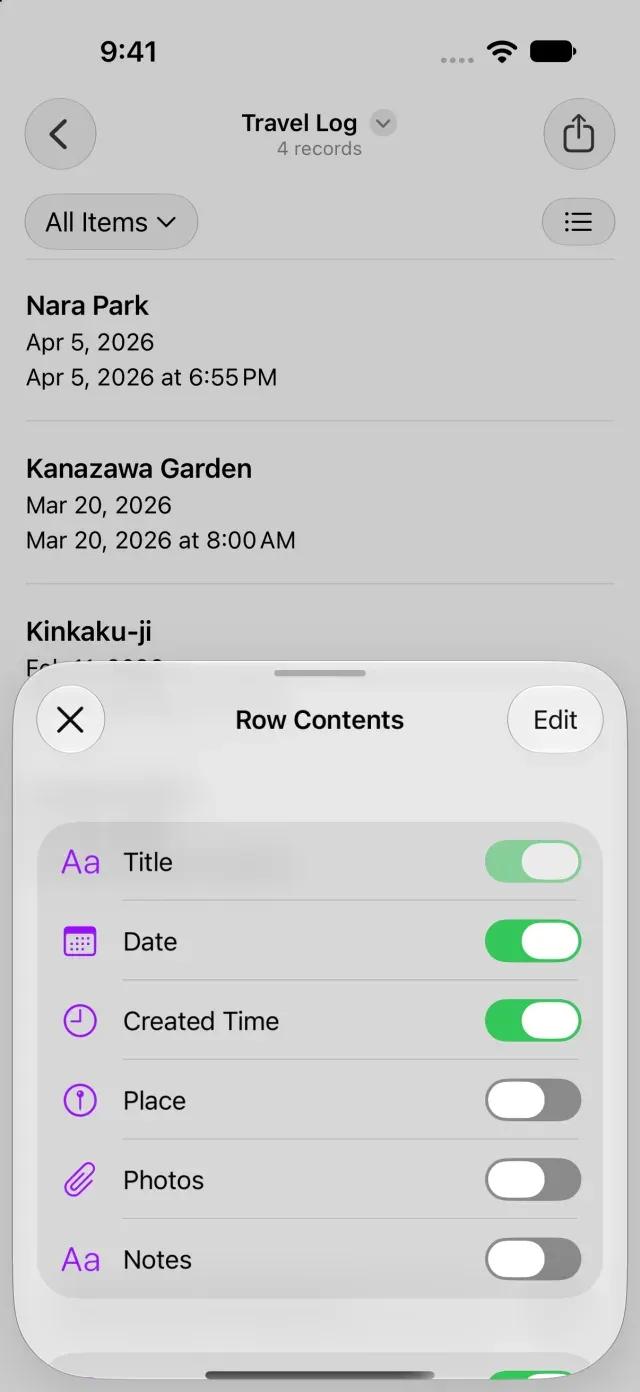
Row Contents controls which fields appear in the list and their order. Calendar checks visible date sources from top to bottom and uses the first date with a value for each record.
- Open Row Contents… in the current view’s menu.
- Show the date field you want to use for Calendar.
- If the collection has multiple date fields, drag the date field you want to display on the calendar to the top of the list.
A value with an end date appears as a span from the start date to the end date.
If a record appears on an unexpected date, review the order in Row Contents and the values in earlier date fields.
Was this article helpful?
Choose a reason
Thank you for your feedback.
If you still need help, use the contact form.