Import CSV and TSV files
Updated:
Import a CSV or TSV file to create a new collection with a record for each table row.
Choose a file and columns to import
Prepare a CSV or TSV file with column headers in the first row, and save it in the Files app on your iPhone or iPad. Importing doesn’t add rows to an existing collection.
- Open Settings at the bottom of the collection list.
- Tap Import CSV… under Data and select a file.
- Review Collection Name and change it if needed. The file name is used by default.
- Under Title Column, choose the column to use for each record’s title. The first column is selected by default.
- Under Columns, review each column’s Field Name and Field Type, and change them if needed.
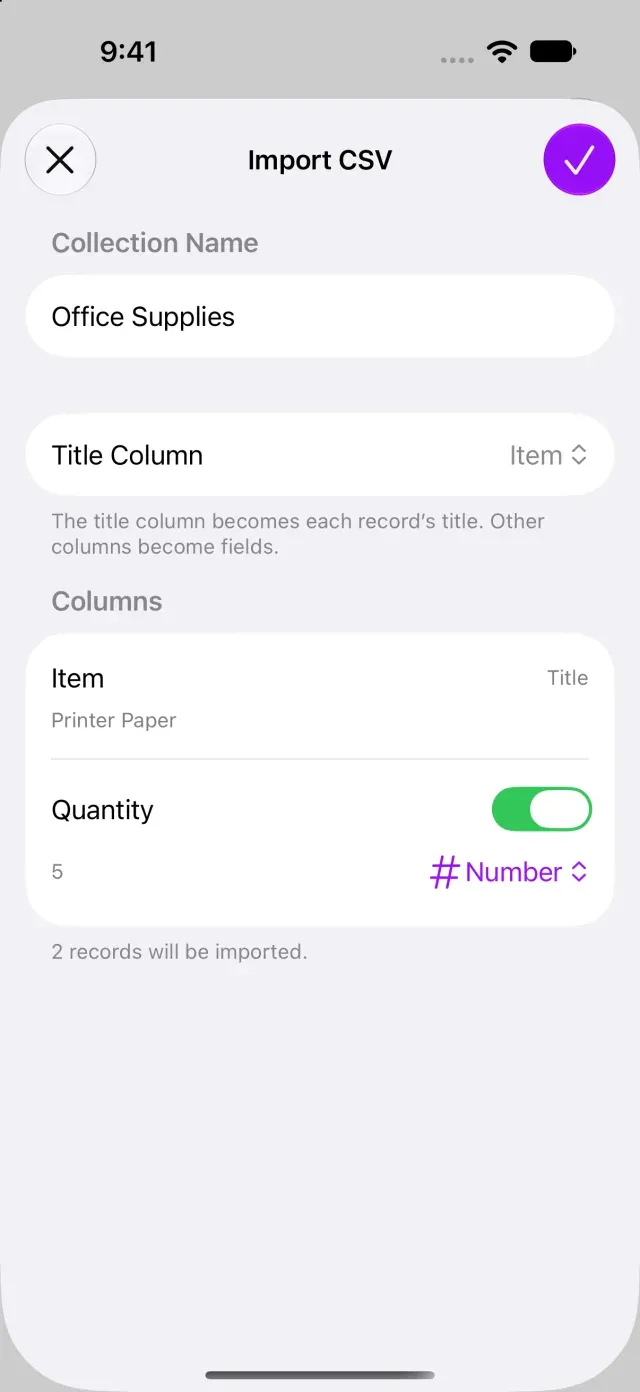
- Review the columns and record count to import, then tap Import. CSV Imported appears with the count.
Columns other than the title column become fields. You can turn off importing for columns you don’t need.
Handle blank values and empty rows
Values that can’t be converted to a column’s type become blank, and Clastly reports their count. Rows with every cell empty aren’t imported. For errors or blank values, see Can’t import a CSV file. To transfer attachments or relations too, see Import and export FAQ.
Was this article helpful?
Choose a reason
Thank you for your feedback.
If you still need help, use the contact form.