Export a collection as CSV
Updated:
On this page
Export a collection as CSV to use record titles and field values in a spreadsheet app or another app.
Export as CSV
The CSV includes fields and records that haven’t been deleted. The entire collection is exported even when a filter is active. To save the attachment files themselves too, use Back up and restore your data.
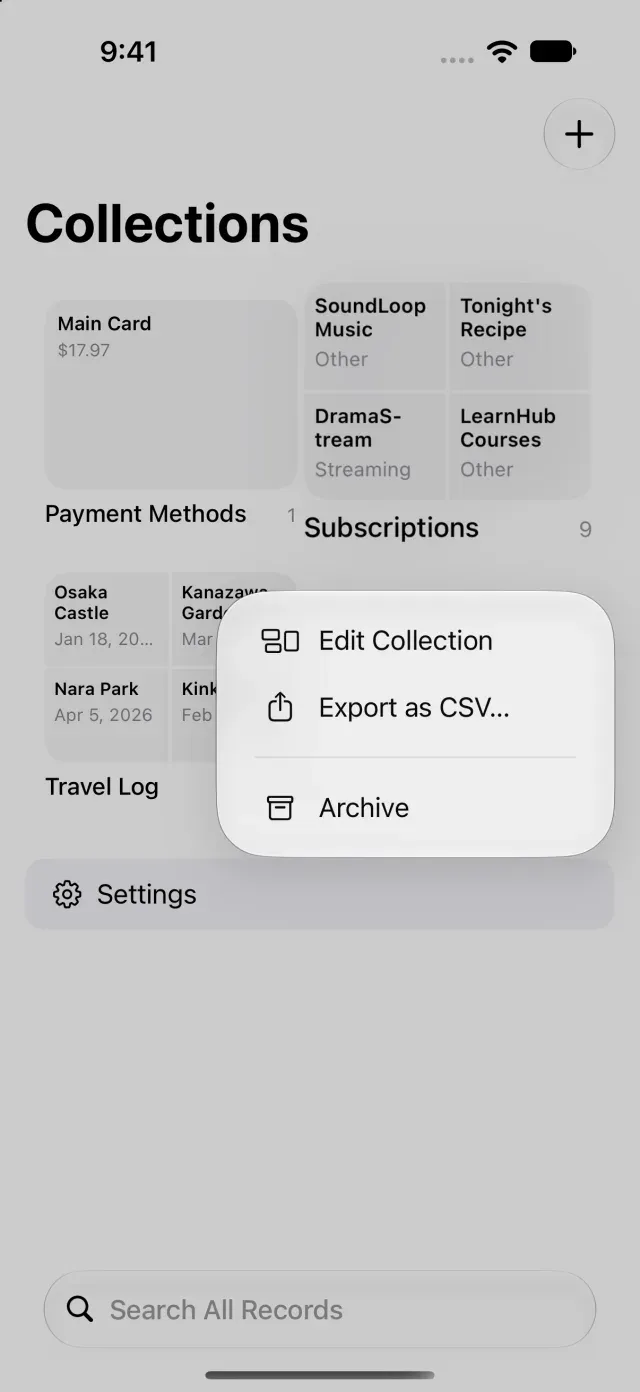
- Touch and hold the collection you want to export in the collection list.
- Tap Export as CSV…. The iPhone or iPad share sheet opens.
- Choose a destination or recipient in the share sheet to save or share the CSV file.
Understand the exported columns
The first column is the title, followed by fields in field order. If there are notes, a note column is included too. File fields export file names; formulas and rollups export their calculated values. The CSV uses UTF-8 encoding with a BOM.
If an error says the collection includes data created in a newer version, update Clastly before exporting. If reimporting the CSV gives different results from the original, see Import and export FAQ.
Was this article helpful?
Choose a reason
Thank you for your feedback.
If you still need help, use the contact form.