Back up and restore your data
Updated:
On this page
Create a backup to save all collections and attachments together and restore them later.
Create a backup
Clastly tries to download attachments that aren’t on your device while creating a backup. Connect to the internet before you start.
- Open Settings at the bottom of the collection list.
- Tap Back Up… under Data.
- Choose a destination and save the file with the
.clastlybackupextension. Backup Saved appears when saving finishes.
If Clastly couldn’t retrieve attachments that aren’t on your device, it also shows how many files were left out. If attachments are missing, see Photos or files won’t open or download, retrieve them, and create the backup again.
Restore from a backup
- Open Data in Settings and tap Restore from Backup….
- Select your saved backup file. A Restore from Backup confirmation appears.
- If there are no duplicates, tap Restore.
- If the backup contains collections you already have, choose Skip Existing or Add as Copies.
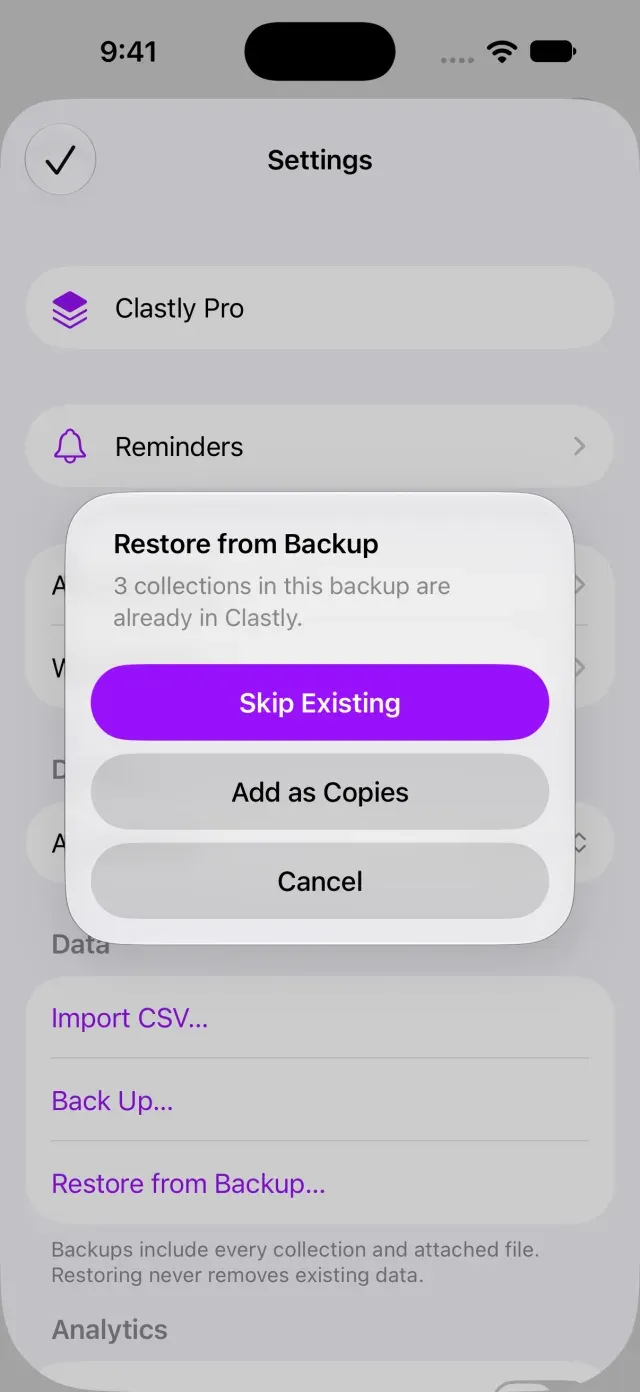
Restoring keeps your existing data. Skipping doesn’t update existing collections; adding as copies creates separate collections. When restoration finishes, Restore Complete appears with the number of collections restored.
If you can’t restore a backup in a newer format, update Clastly and try restoring again.
Was this article helpful?
Choose a reason
Thank you for your feedback.
If you still need help, use the contact form.