Add a widget to the Home Screen
Updated:
Add a Home Screen widget to see records or record counts without opening Clastly.
Add a Home Screen widget
Create the collection you want to display in Clastly first. To show records on a calendar, enter dates in the records.
- Touch and hold the Home Screen on iPhone or iPad and open the widget picker.
- Find Clastly and add Recent Records, Record Count, Calendar, or Quick Add.
- Touch and hold the widget to edit it and choose a Collection. Records or counts from that collection appear on the Home Screen.
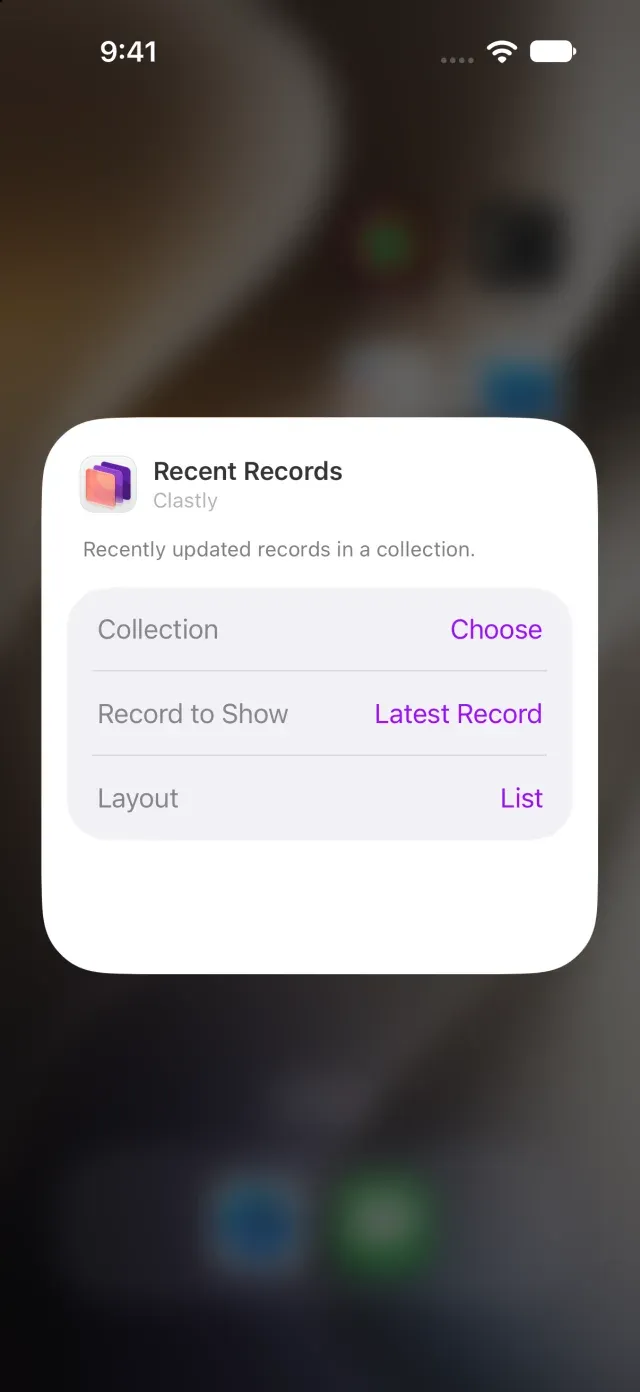
If the collection isn’t found, choose it again in the widget editor. If records don’t appear on the calendar, review their dates and visible fields using Show records with dates on a calendar.
Change the Recent Records display
- Touch and hold the Recent Records widget to edit it.
- Choose what to display under Record to Show. To specify a record, select it under Record.
- Choose List or Thumbnails under Layout. The layout changes how records are arranged.
- To use the add button, turn on Show Add Button.
Was this article helpful?
Choose a reason
Thank you for your feedback.
If you still need help, use the contact form.