Add records from Safari or Maps
Updated:
Use the share sheet in Safari or Maps to add pages or places as records.
Add a record from the share sheet
The share sheet sends the page you’re viewing or files you’ve selected to another app. Create a destination collection in Clastly first. If you don’t have one, see Create your first collection. You can share up to 10 photos, one video, or five other files at a time.
- Open the page you want to save in Safari or the place you want to save in Maps, then open the share sheet.
- Choose Clastly as the destination. Add to Clastly appears.
- Choose a destination under Collection, then review Title and change it if needed.
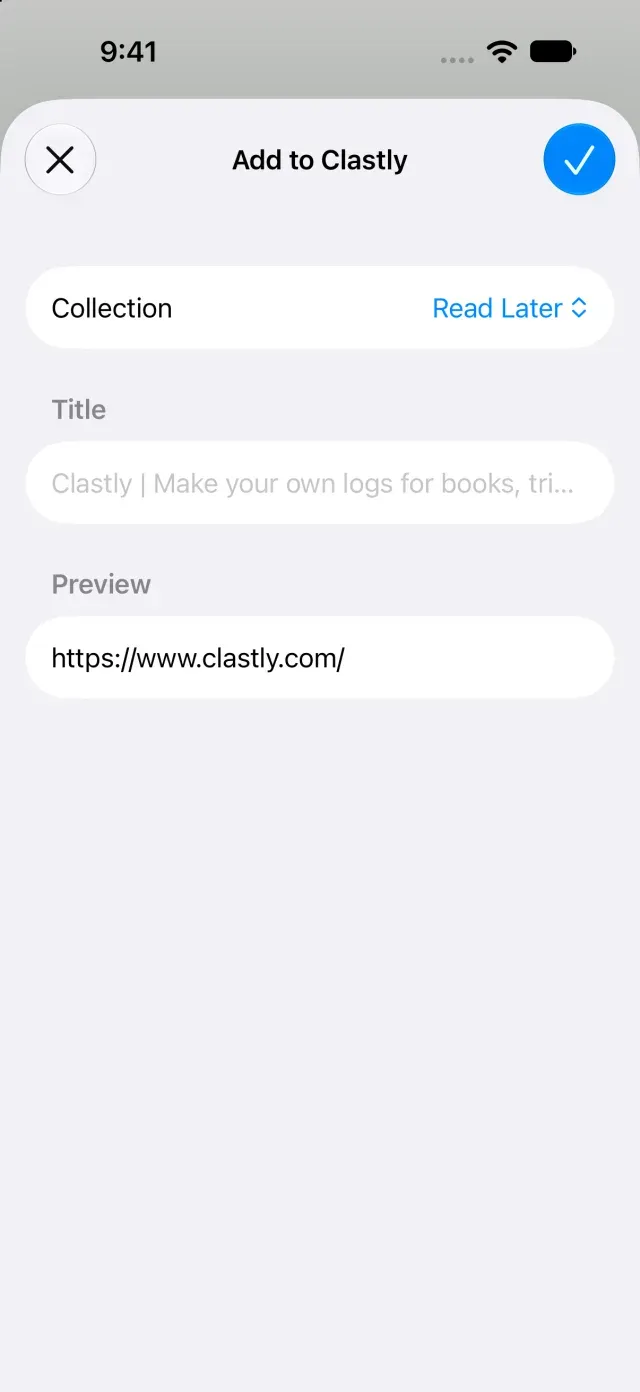
- Review the shared content under Preview and tap Save.
- Open Clastly and the collection you selected. The shared content is added as a record.
Find where shared content is stored
For locations, URLs, and files, the first item of each type goes into the first matching field in the collection. Items with no matching field and any additional items go into the note. Shared text also goes into the note.
If you can’t find saved content, see Shared content isn’t added to a collection.
Was this article helpful?
Choose a reason
Thank you for your feedback.
If you still need help, use the contact form.